10DLC Brand and Campaign Registration Guide
Overview
To use 10DLC phone numbers for SMS messaging, you must complete a 10DLC brand and campaign submission. This process verifies your business information and messaging use case.
You can start filling out your Brand information after you have registered for the Reach Line program through the app. If you have not done this yet, please refer to the article “How to Sign Up for the Reach Line Program” to complete the registration first.
After registration is complete, fill out your Brand and Campaign information as described below.
The submission takes about 10-15 minutes and includes a one-time, non-refundable $15.00 fee. Please make sure all information is accurate before submitting and do not refresh the page during registration.
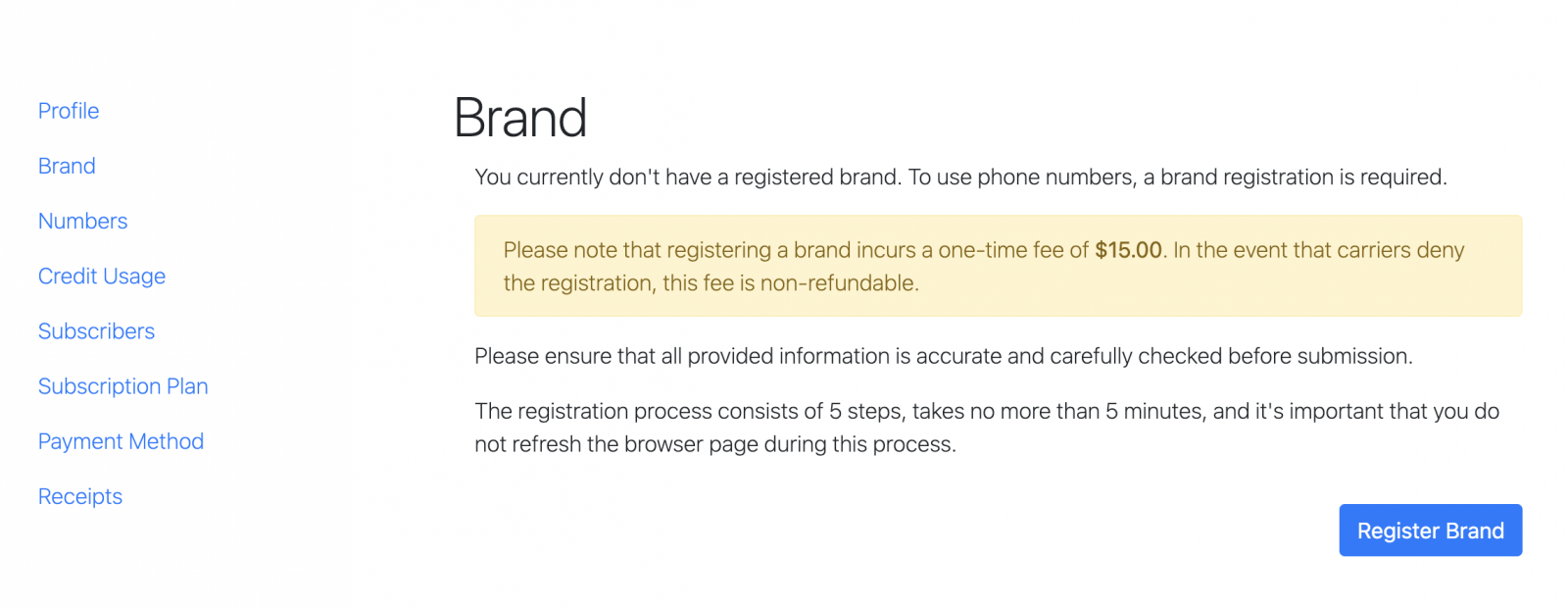
Click Register Brand to proceed to the first step.
Step 1: Brand Declaration
Start by selecting your Business Type. Choose the option that matches how your business is legally registered:
- Sole Proprietor - for individuals operating under their own name or DBA.
- Corporation - for incorporated companies.
- Limited Liability Corporation - for LLC businesses.
- Non-profit Corporation - for registered non-profit organizations.
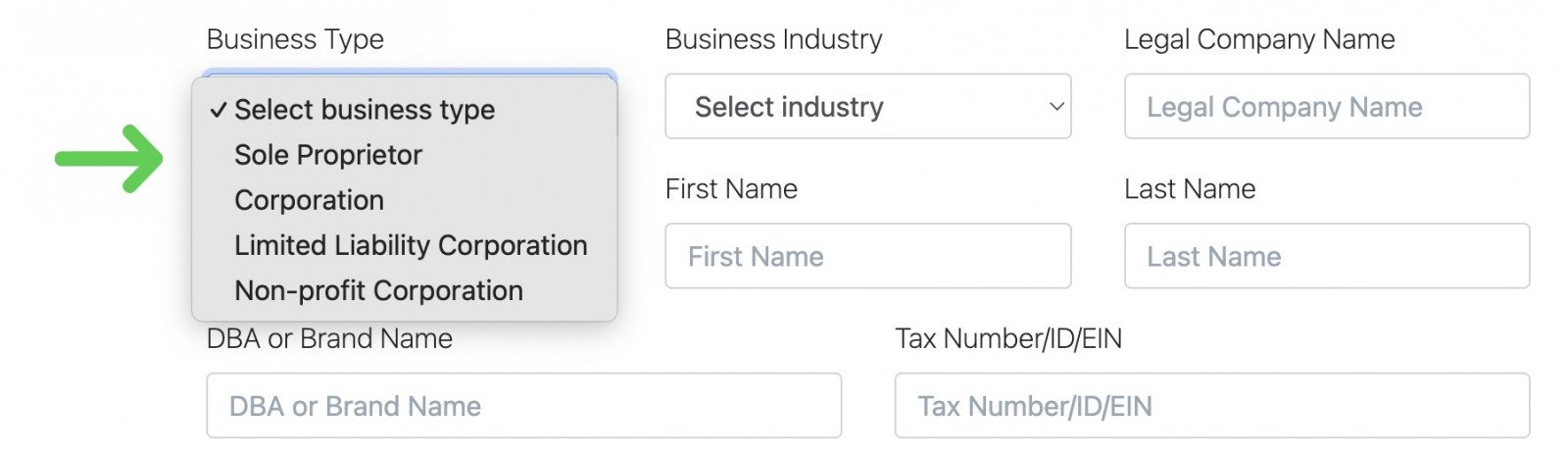
If you are registering as a Sole Proprietor, select Sole Proprietor as the Business Type and choose the appropriate Business Industry.
For Sole Proprietor registrations, the DBA or Brand Name usually matches the person’s legal first and last name, unless the individual operates under an officially registered business name or DBA. For example, if the registrant is John Smith and there is no separate registered business name, the DBA or Brand Name should be entered as John Smith.
Make sure the name, address, email, phone number, and website are accurate and consistent with the business information used for messaging.
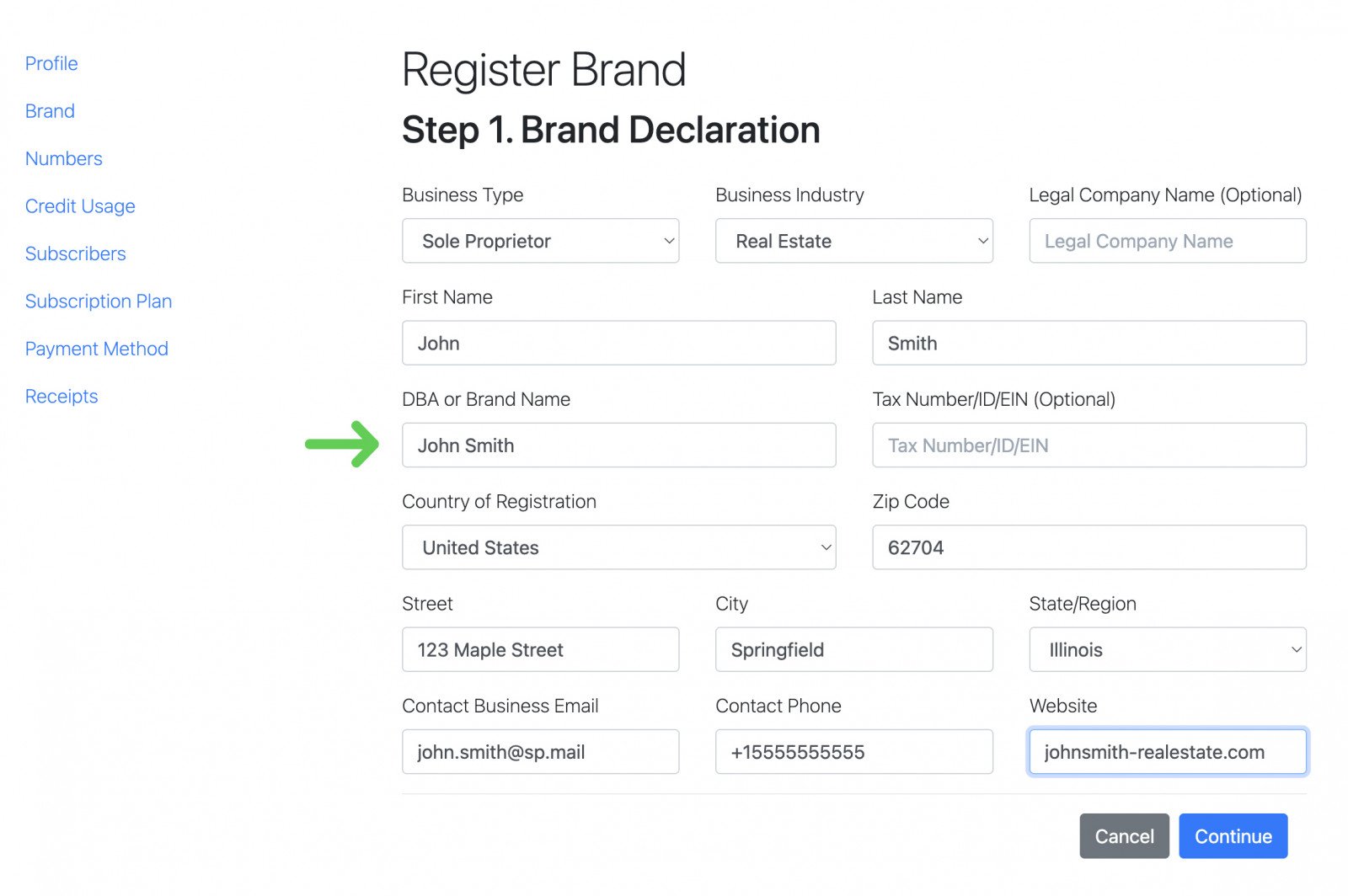
If you are registering as a Corporation, select Corporation as the Business Type and choose the appropriate Business Industry. Please note that for corporations and other similar business types, the Tax Number/ID/EIN field is required.
For corporations, if your business does not have a website, you must provide a link to an official business social media account.
Click Continue to proceed to the next step.
Step 2: Use Cases Declaration
In this step, specify how many SMS messages you expect to send per week and select the sub-use cases that match the types of messages your business will send.
For a Real Estate campaign, the following options are commonly selected:
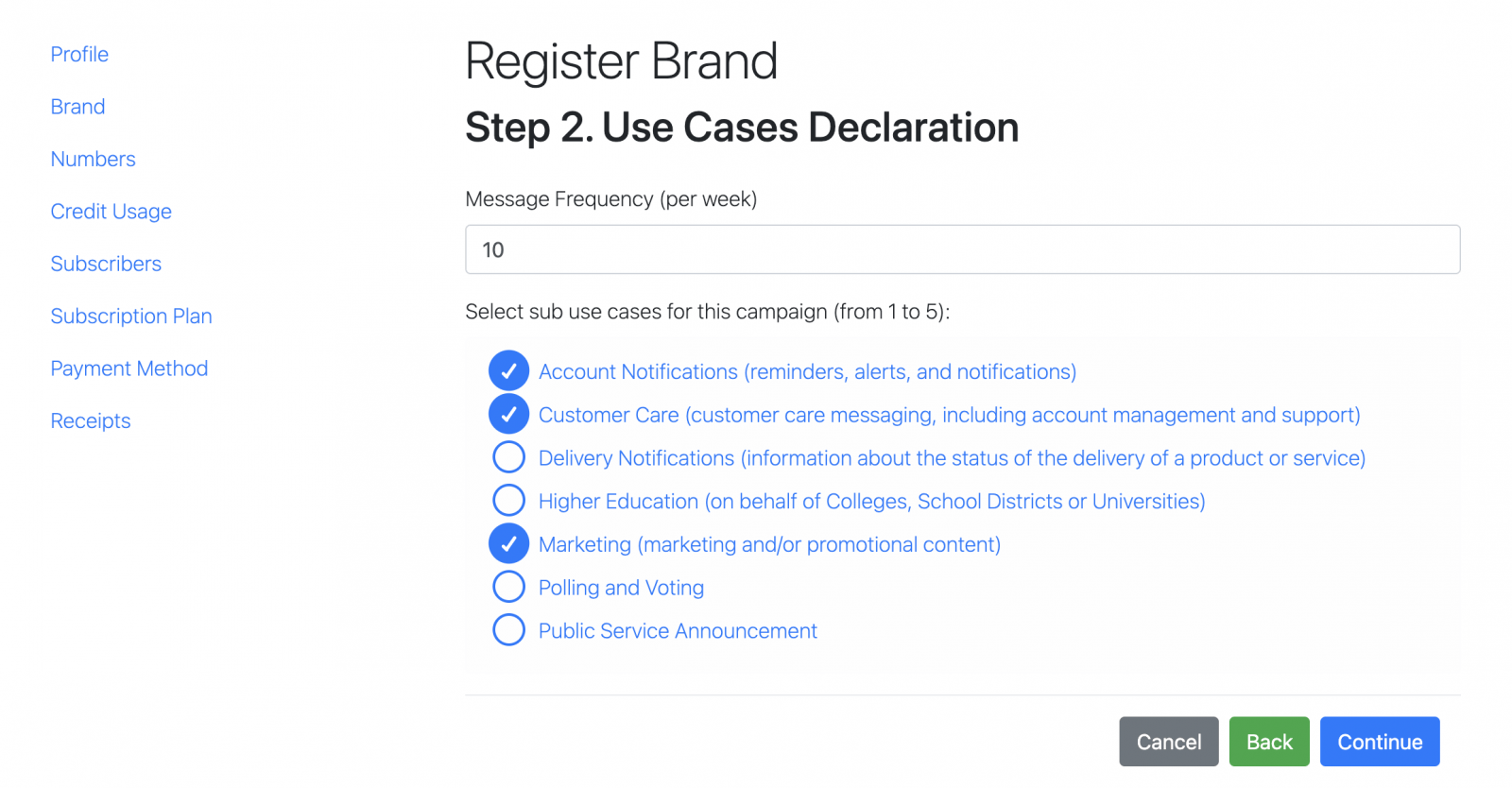
- Account Notifications - used for reminders, alerts, appointment confirmations, showing reminders, and status updates.
- Customer Care - used for responding to client inquiries, providing support, and communicating with customers about real estate services.
- Marketing - used for promotional messages, new property alerts, listing updates, and information about available real estate services.
These options should match the consent form where users agree to receive SMS messages from your business. For example, if you select Marketing here, your consent form must also clearly state that users agree to receive marketing or promotional SMS messages.
Only select the use cases that accurately match the messages you plan to send and the consent you collect from users.
Click Continue to proceed to the next step.
Step 3: Descriptions and Consents
3.1. Enter a Campaign Name that clearly reflects your brand and the purpose of your SMS messages. The name should be related to what your business does and the type of communication you plan to send.
For example, a real estate business may use a campaign name such as John Smith Real Estate Updates.
3.2. Fill out the Campaign Description field. This description should explain who will receive your messages, what types of messages will be sent, how users provide consent, and how they can opt out.
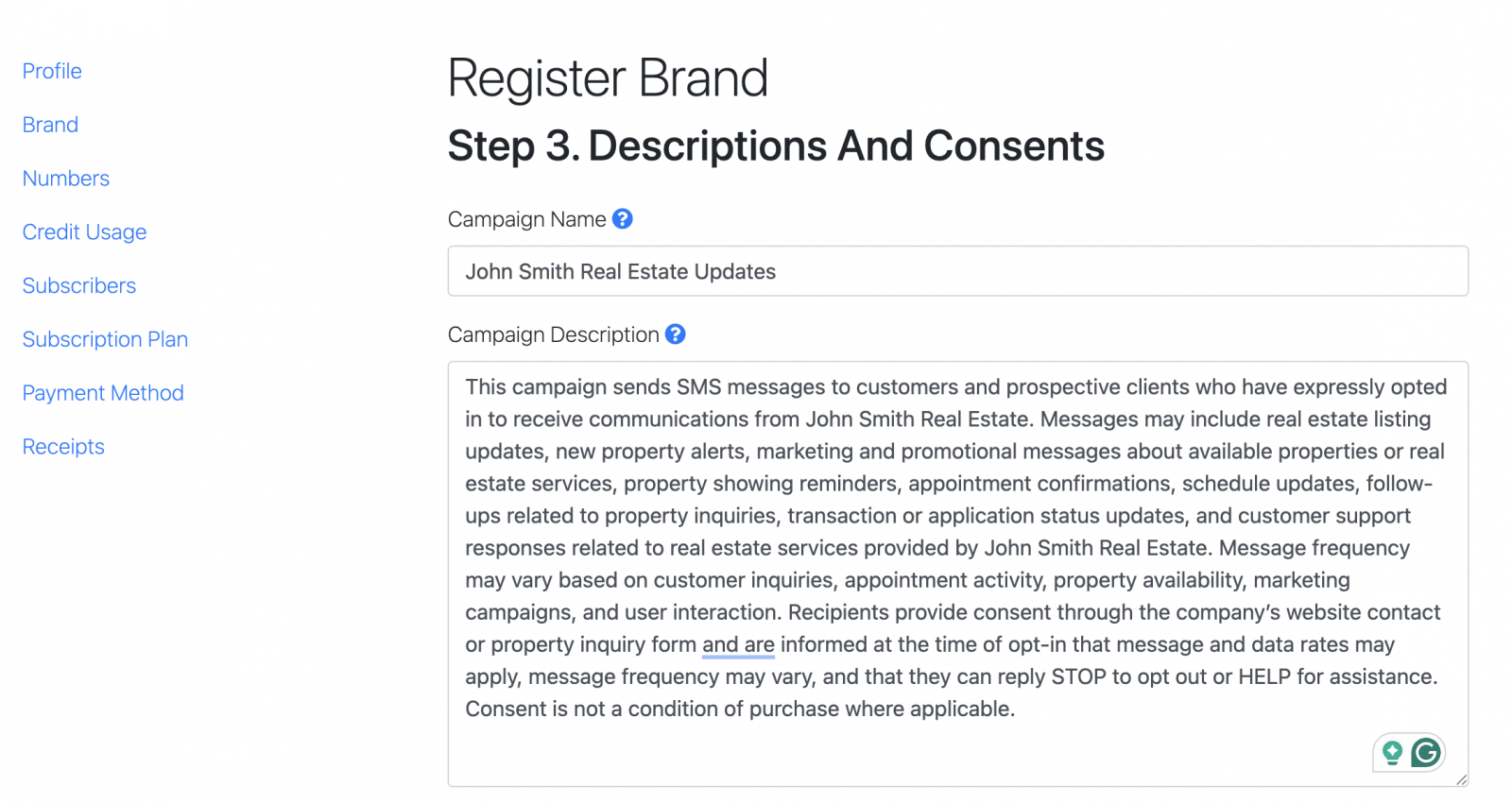
For detailed guidance, see the article "How to Fill Out the Description Field in a 10DLC Application".
3.3. Next, select the consent mechanism for your campaign. Choose the consent type that matches how you collect permission from users to send them SMS messages.
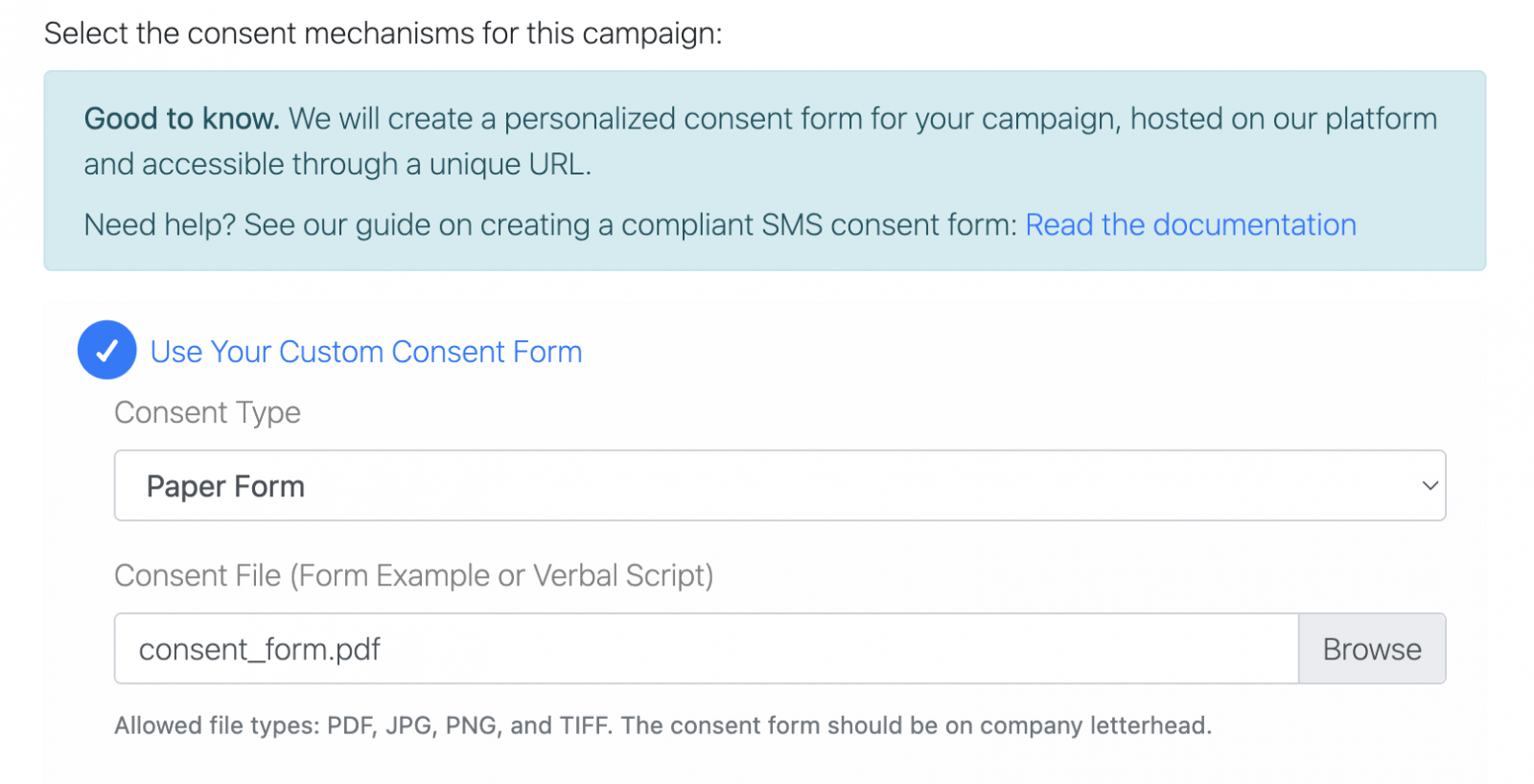
For detailed information about consent forms, please refer to the article that explains all consent requirements.
3.4. Provide two examples of SMS messages that you plan to send as part of this campaign. The examples should clearly match the selected use cases and the consent collected from users.
For example, for the brand John Smith, the messages may look like this:
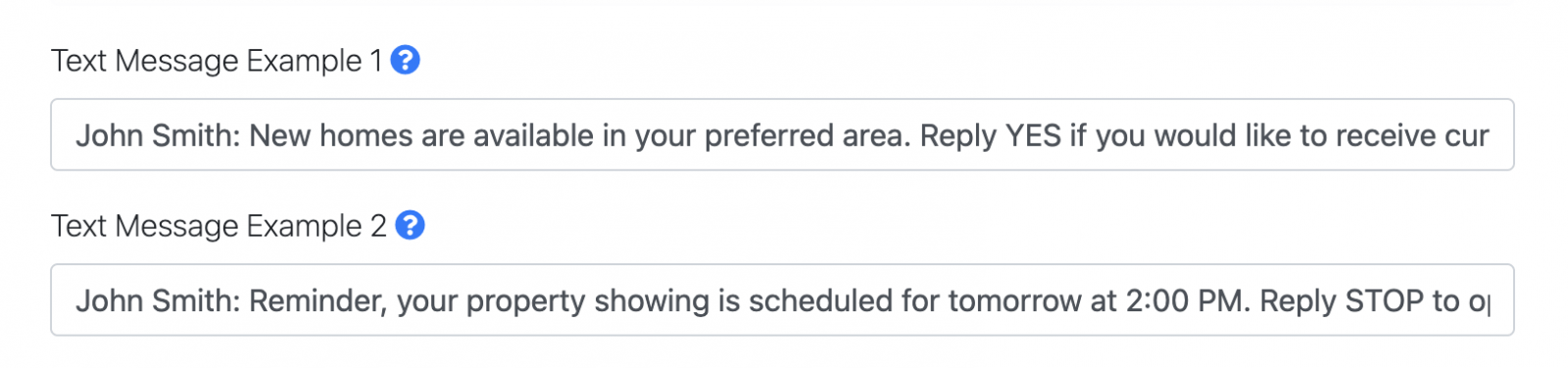
Text Message Example 1: John Smith: New homes are available in your preferred area. Reply YES if you would like to receive current listings or schedule a property showing. Reply STOP to opt out.
Text Message Example 2: John Smith: Reminder, your property showing is scheduled for tomorrow at 2:00 PM. Reply STOP to opt out.
3.5. Select the content attributes that apply to the messages you plan to send. These attributes help carriers understand what type of content may appear in your SMS messages.
For example, if you plan to include links to property listings, appointment pages, websites, or online forms, select Ability to Send Web Links in Messages and provide an example link.
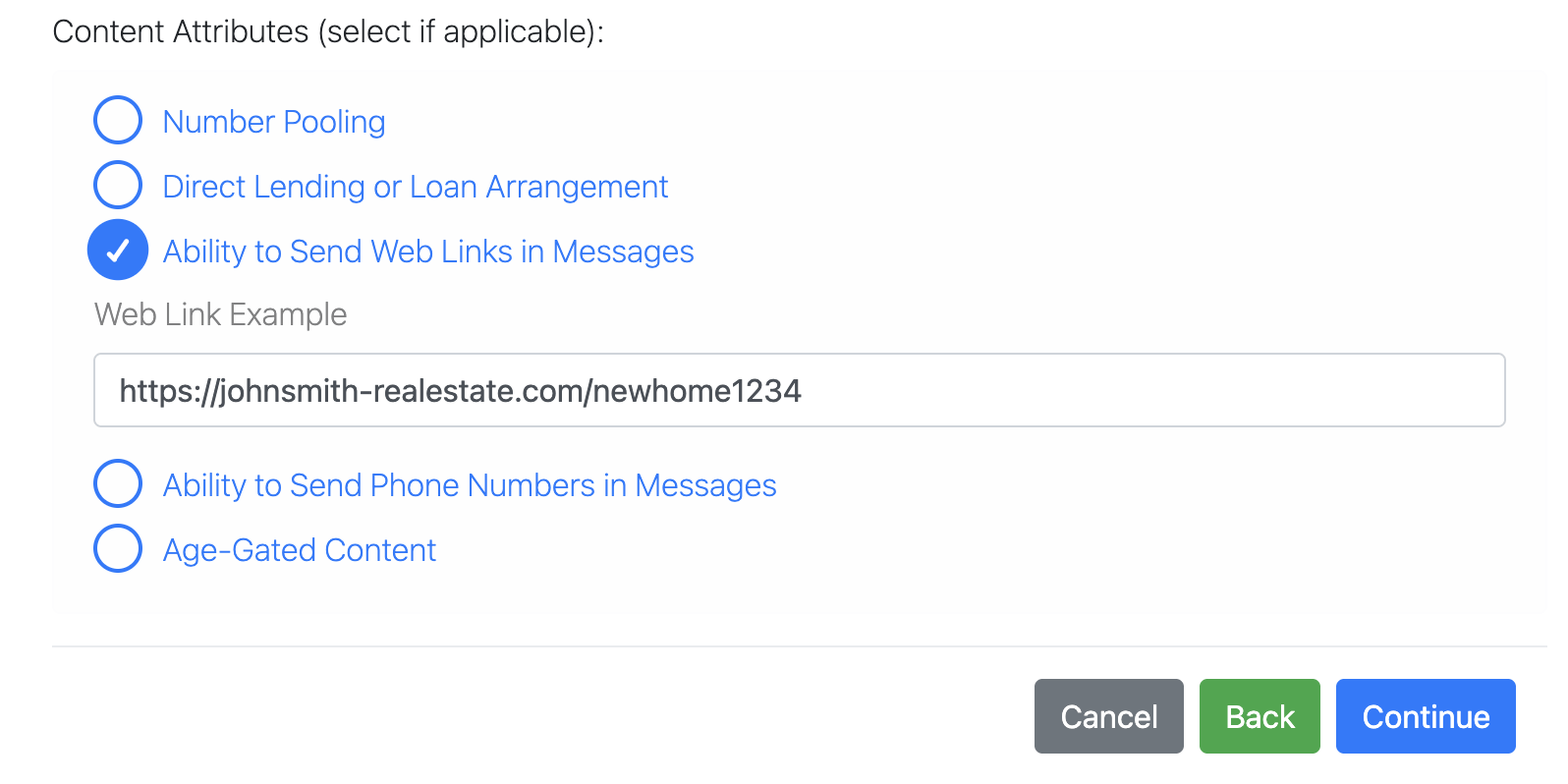
It is important to select all applicable attributes accurately. If your messages include web links or phone numbers but this is not declared in the application, the network provider may treat the messages as suspicious or spam, and your messages may not be delivered to recipients.
Only select the attributes that match the actual content of your SMS messages.
Click Continue to proceed to the next step.
Step 4: Terms and Conditions
At this step, review the Privacy Policy and Terms and Conditions that were automatically generated based on the information you provided in the previous steps.
Make sure all details are accurate, including your campaign name, opt-in method, opt-out instructions, business information, and message terms.
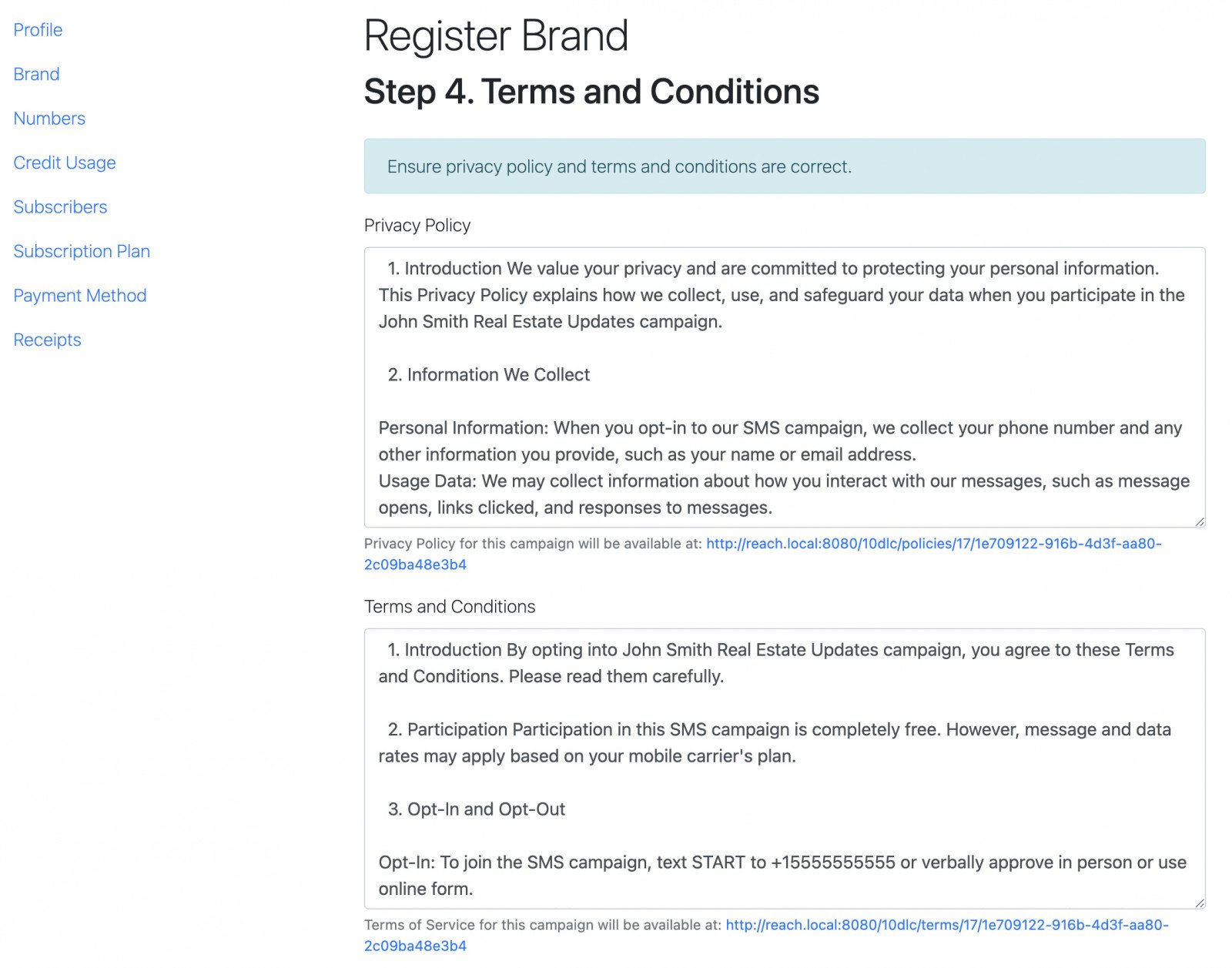
After confirming that everything is correct, click Continue to proceed to the next step.
Step 5: Submitting the Form
At this step, review all submitted information before completing the registration. Check each section carefully, including Brand Information, Campaign Information, Terms and Privacy Policy, and auto-generated fields.
If you notice any mistakes, click Back and update the information before submitting.
After confirming that all details are correct, acknowledge that your Privacy Policy and Terms and Conditions meet the 10DLC requirements.
Please note that a $15.00 registration fee will be charged when you complete the registration. This fee is non-refundable, even if the submission is rejected by 10DLC regulator.
Click Complete Registration to submit the form.
Next Steps
After you submit your application, it will be reviewed by the 10DLC regulator within 3 - 7 business days. Once approved, you will be able to select 10DLC number and you will need to link it to your account in the Reach app.
When all previous steps are completed, your phone number will be ready to use for messaging. For instructions on how to send messages through your new number, please see the article "How to Start Messaging Through Reach Line".