How to Connect a Reach Line Number to the Reach App
Follow the steps below to connect Reach Line number to the Reach app.
Requirements: Your 10DLC campaign must be approved.
Step 1: Sign In to Your Account
Go to: https://www.reachtheapp.com/signin
Sign in using your account credentials.
Step 2: Open the Numbers Section
After logging in: Navigate to the Numbers tab in the website interface (or go to the Numbers directly).
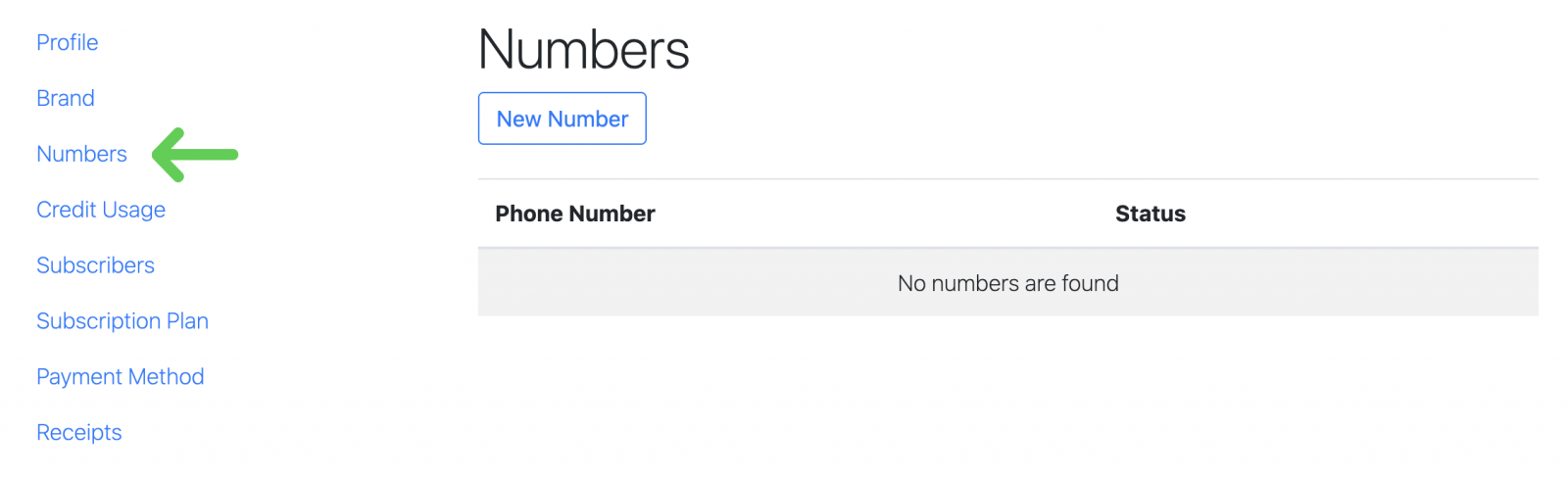
Step 3: Add a New Number
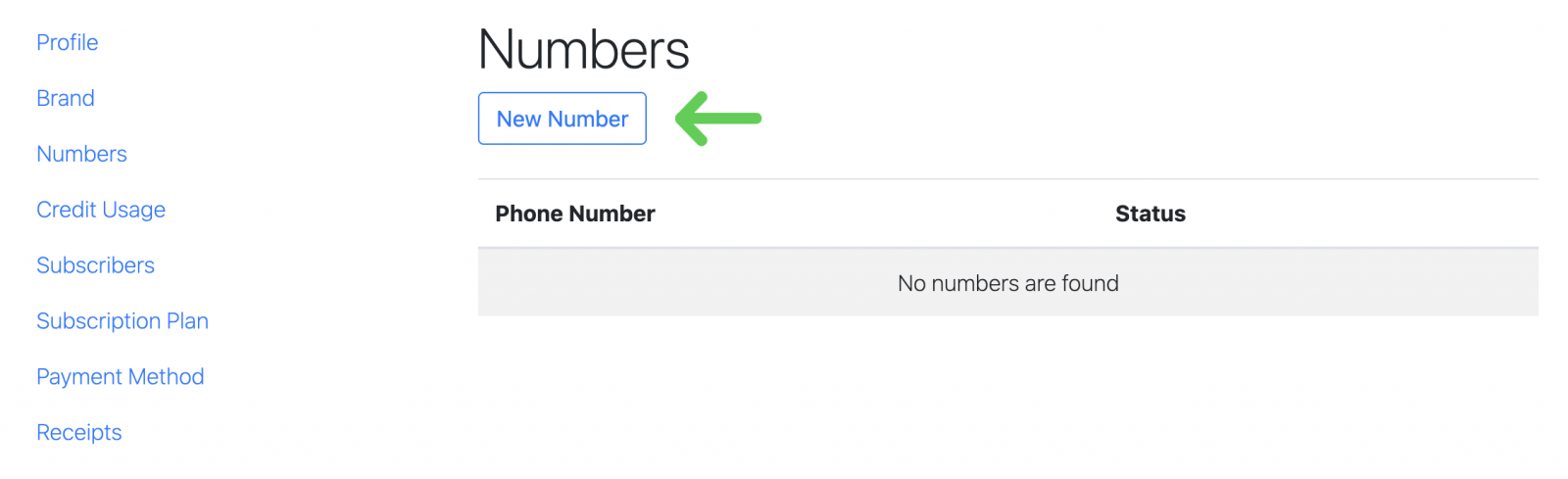
If you already have a number, proceed to Step 5.
- Click "New Number".
Step 4: Add the Number to Your Account
You can use the search field to enter any combination of digits you prefer. If the number is available, it will appear as available for selection.
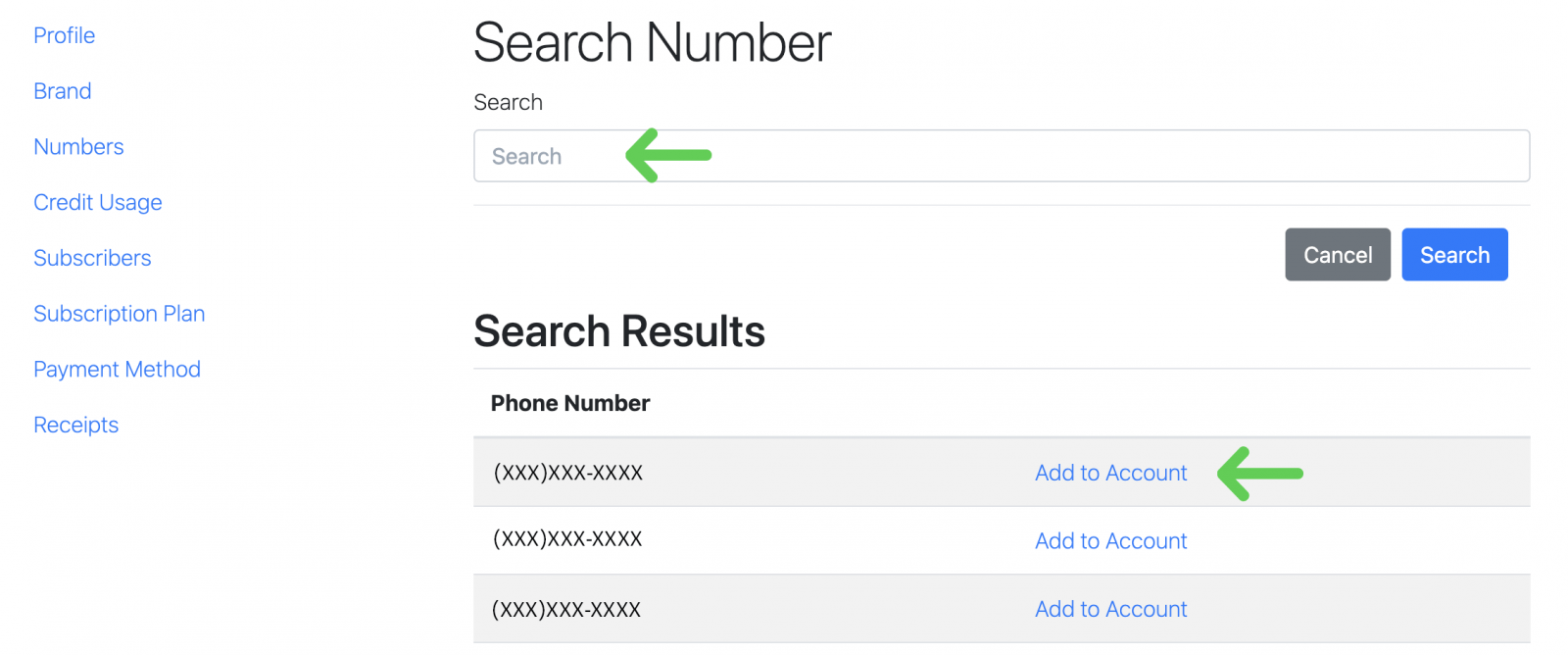
- Click "Add to Account" next to the number you want.
- On the next page, click "Add" to confirm.
You will now see the newly added number in the Numbers tab.
Step 5: Connect the Number to Reach
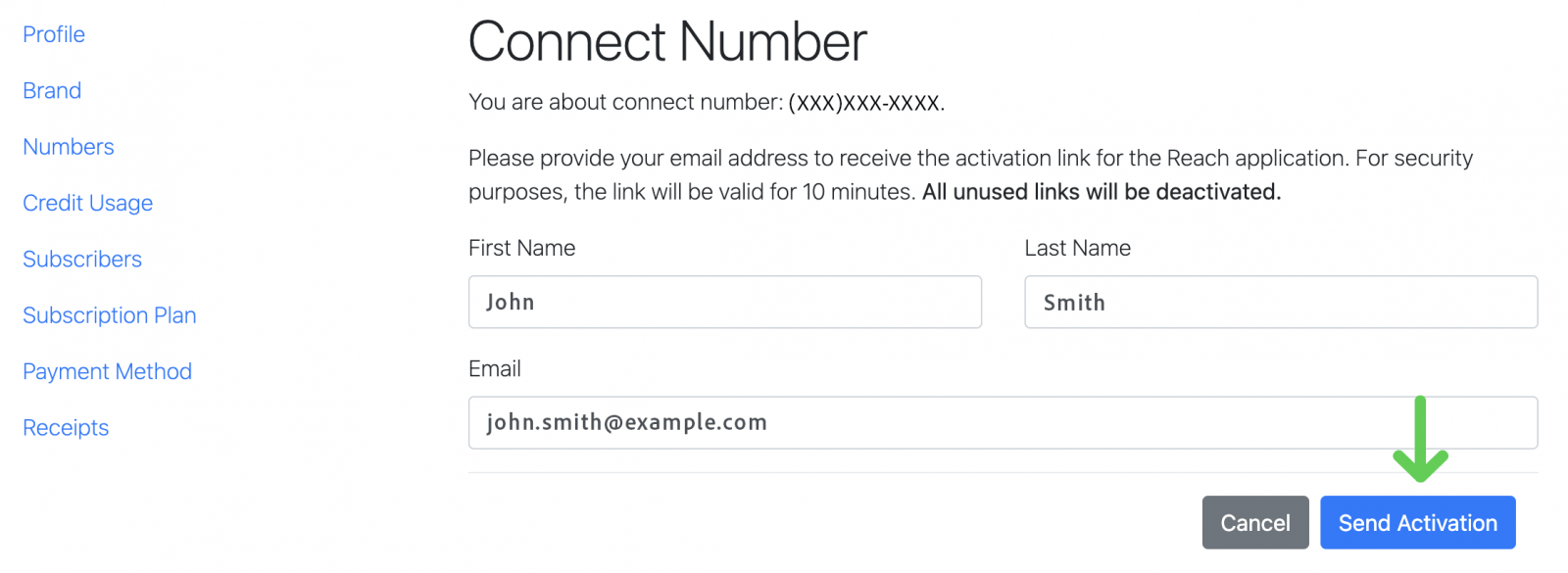
- Click "Connect Reach".
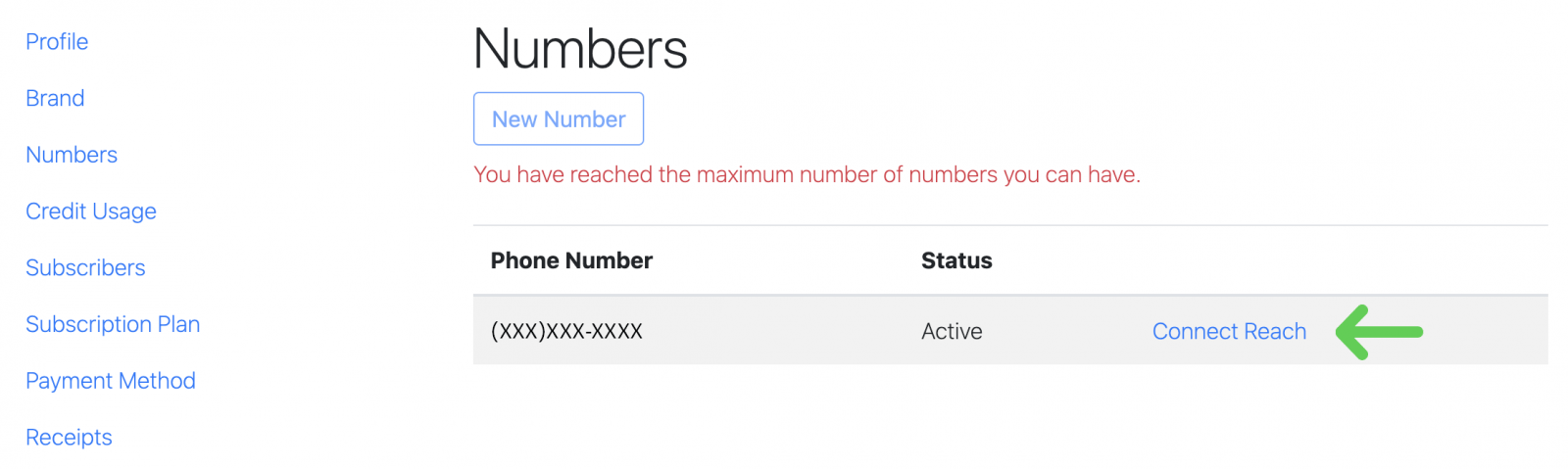
- You will be asked to enter your first name, last name, and email address. An activation link will be sent to this email.
Step 6: Activate the Number
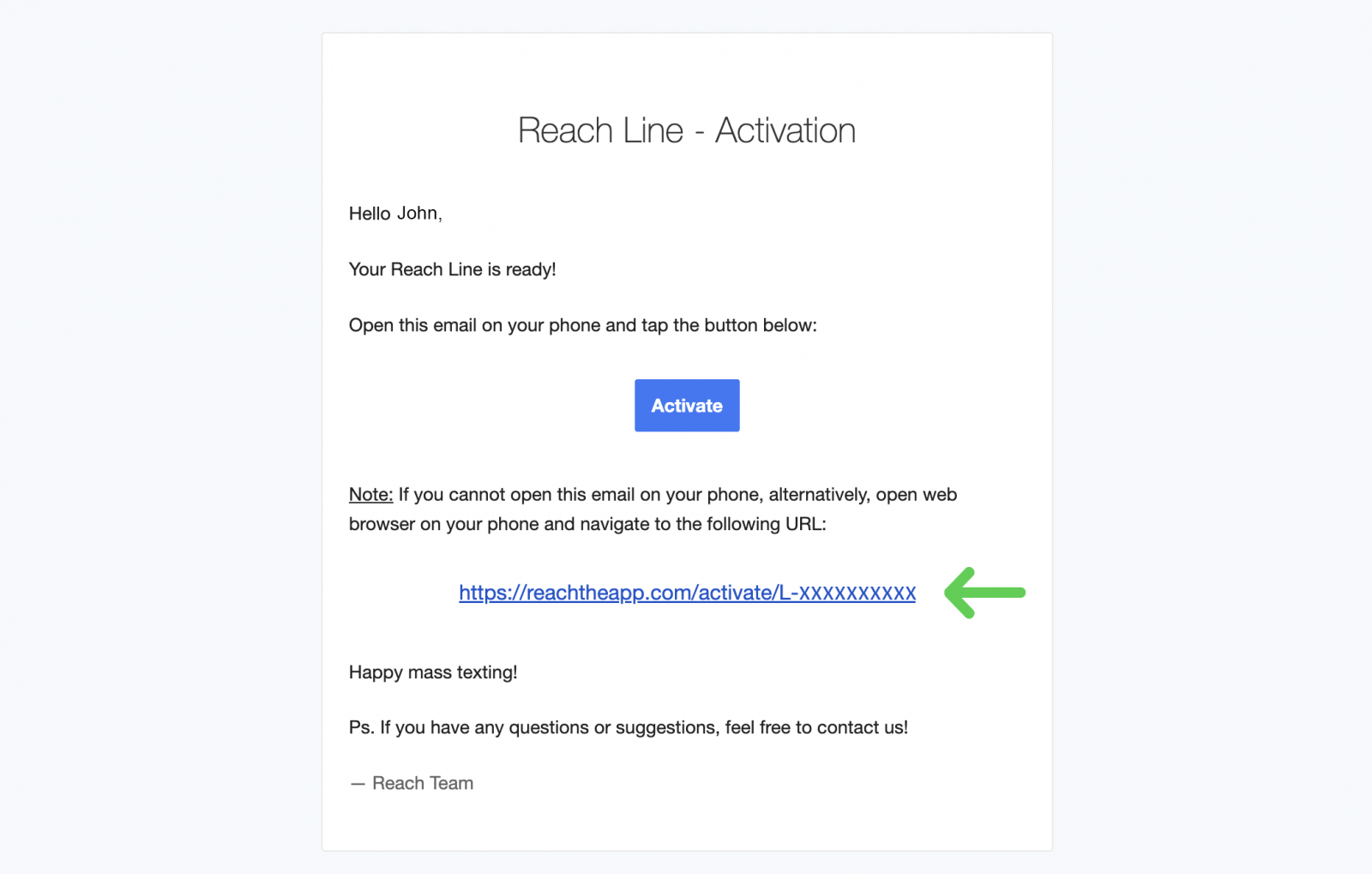
- On a Mobile Device: Open the activation link from the email directly on your mobile device. The Reach app will open automatically, and the Reach Line phone number will be activated.
- On a Computer: If you are unable to access the email on your mobile device, open the email on your computer. Then copy or type the activation link into a browser on your mobile device. You will be automatically redirected to the Reach app, and the Reach Line number will be activated.
Step 7: Finish the Registration
You will be automatically redirected to the Reach app. Tap "Continue" to finish the registration. The Reach Line number will be activated.