Remove Contact from Group
In Reach, you can remove a contact from a group in several ways. Removing a contact from a group only affects the Reach app. It does not delete the contact from your phone’s address book.
Option 1: Remove a Contact by Swiping Left
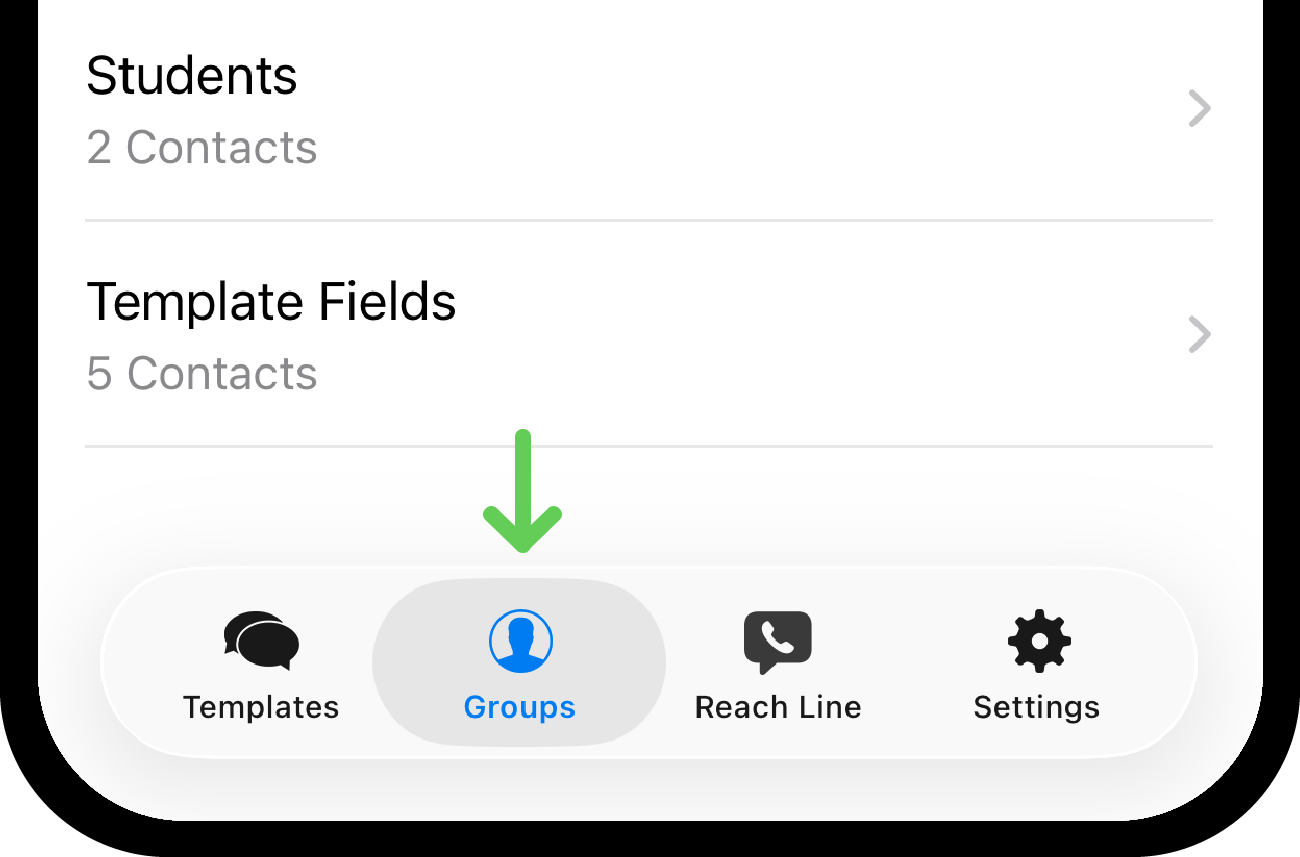
Tap the Groups tab.
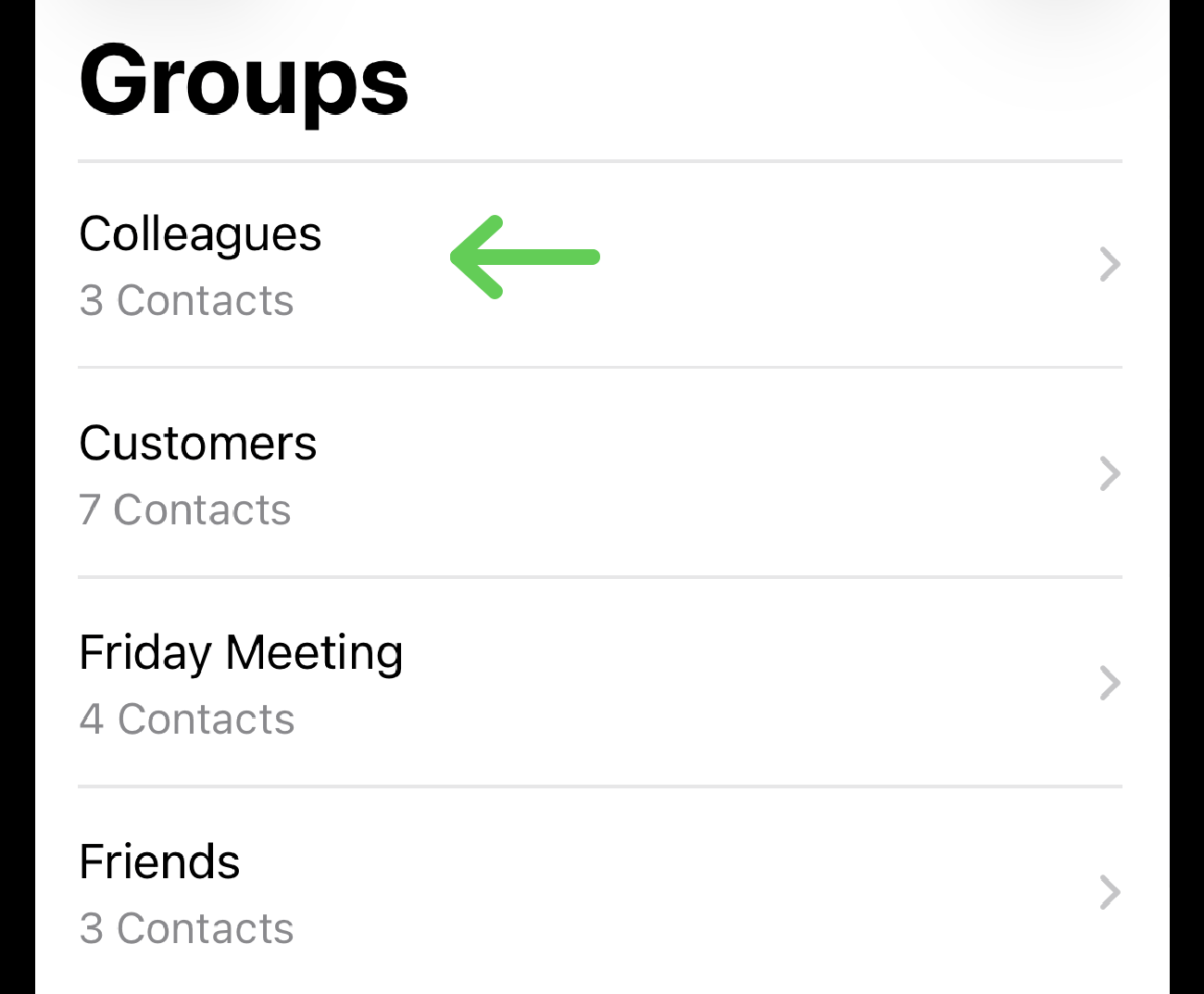
Open the group you want to manage.
Swipe left on the contact you want to delete.
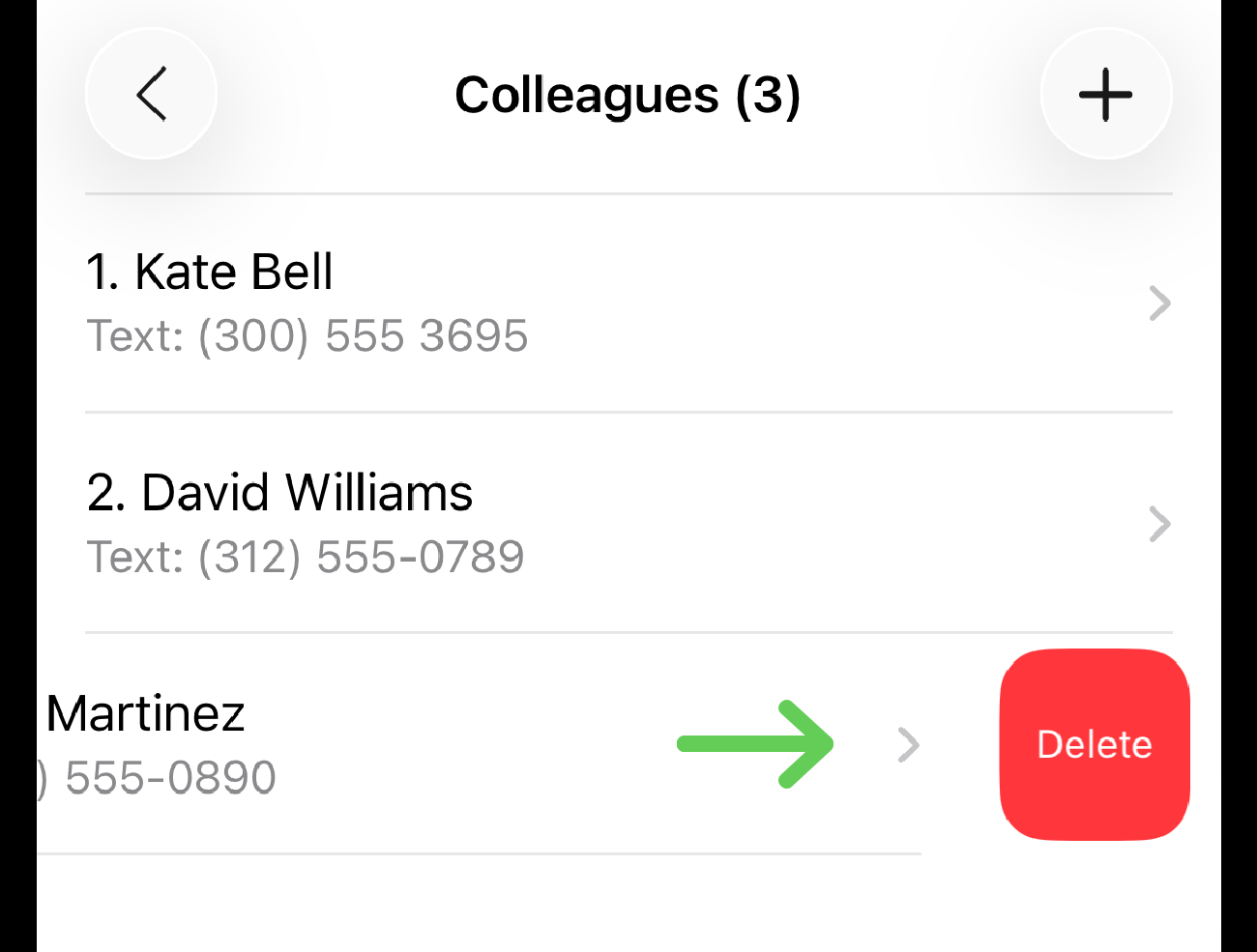
Tap Delete. The contact will be removed from the group immediately.
Option 2: Remove Multiple Contacts Using Edit Mode
Open the group you want to edit.
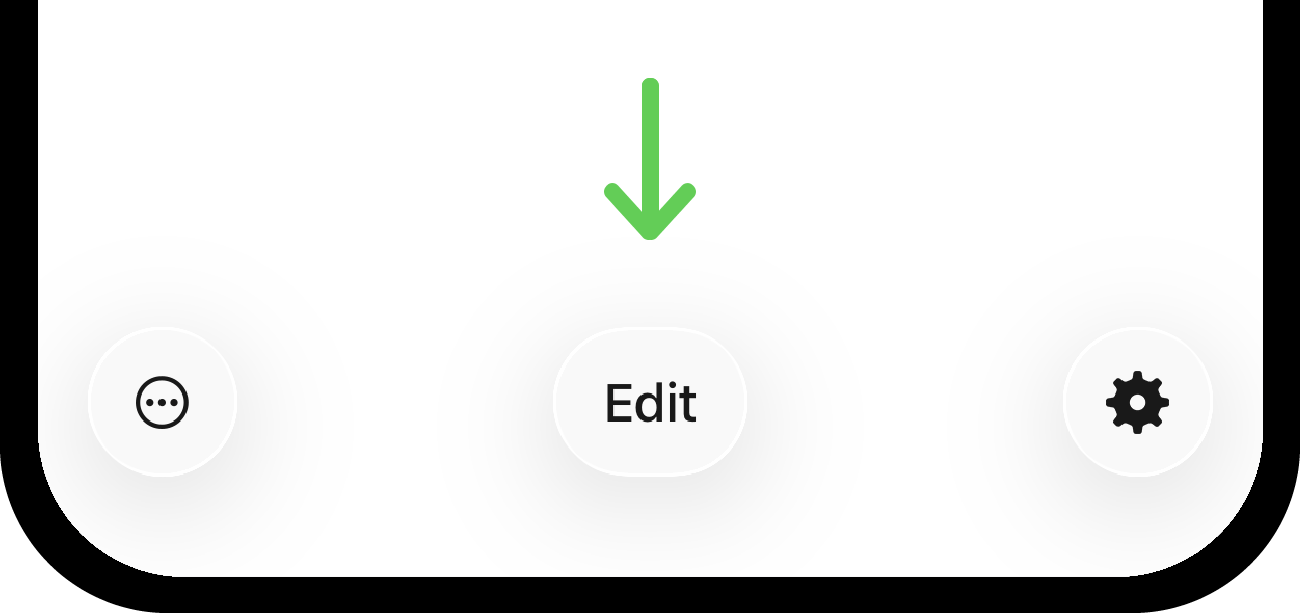
Tap Edit at the bottom.
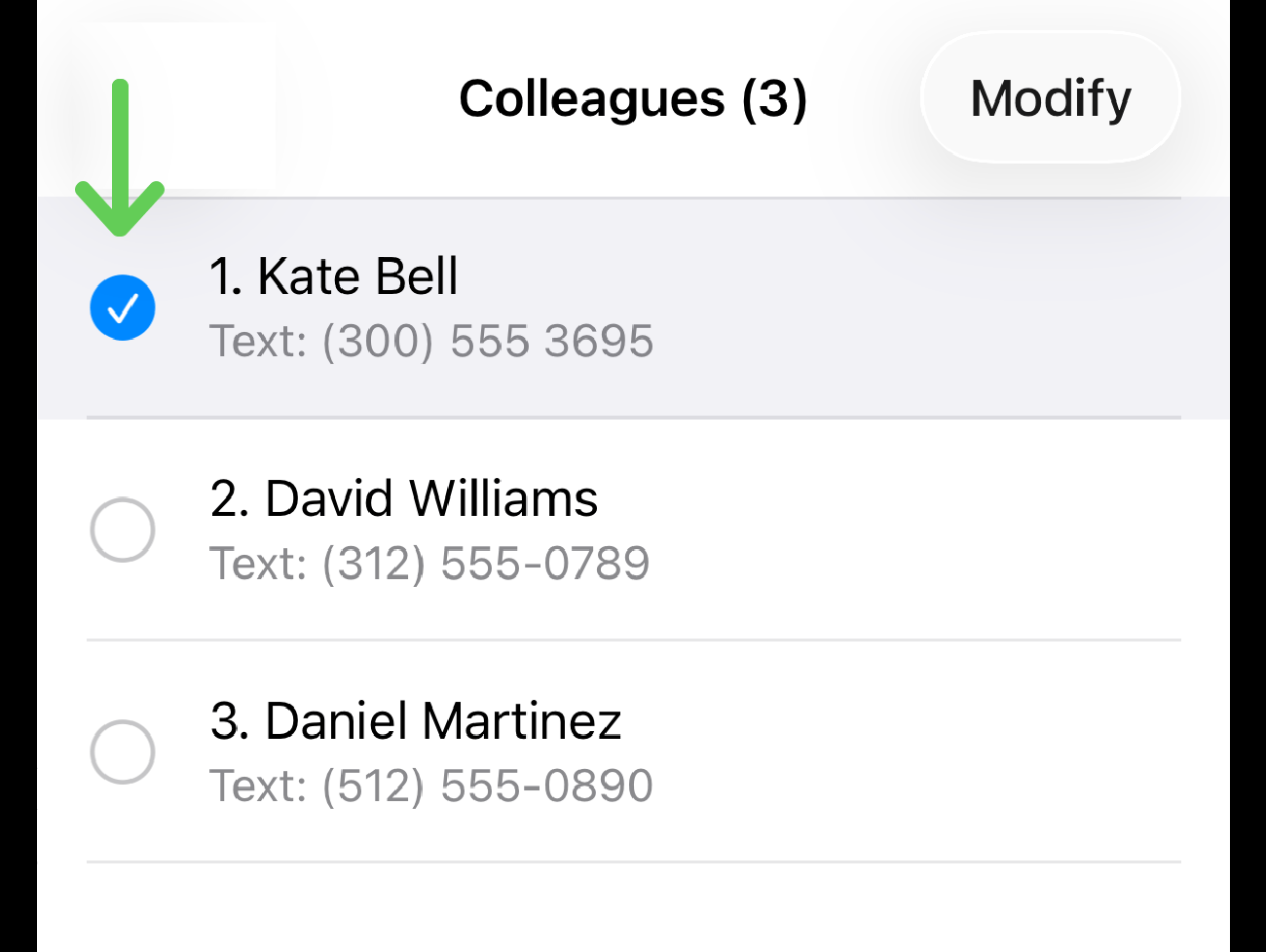
Select the contacts you want to remove.
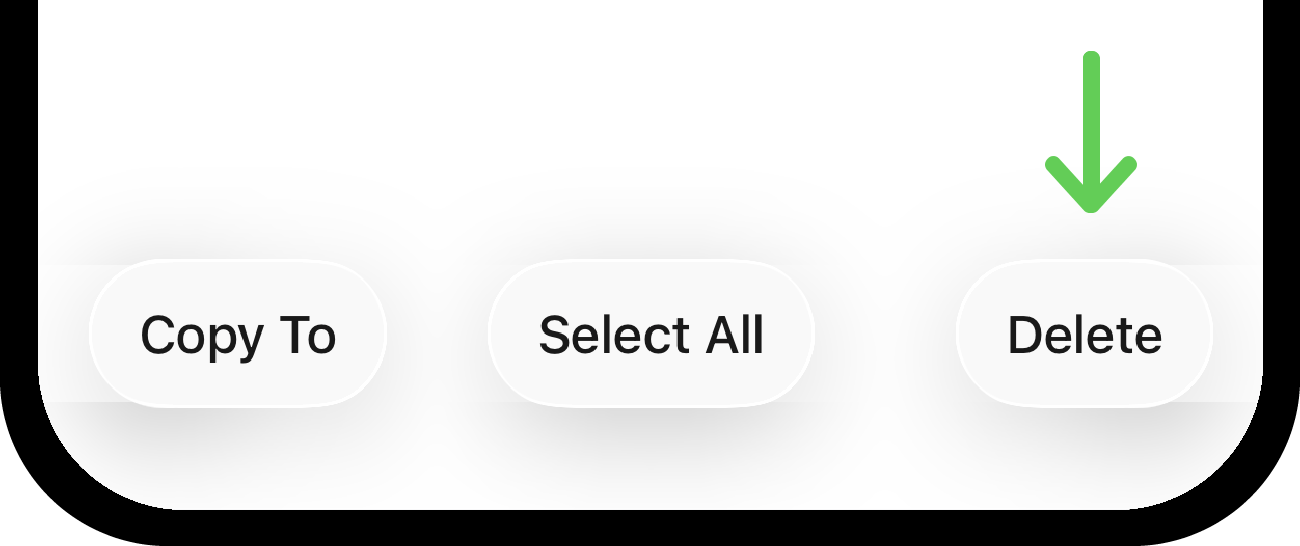
Tap Delete in the bottom-right corner.
Confirm the action in the pop-up dialog by tapping Delete.
Option 3: Remove a Contact from the Contact Edit Page
Open the group.
Tap the contact you want to remove. You will be taken to the contact edit page.
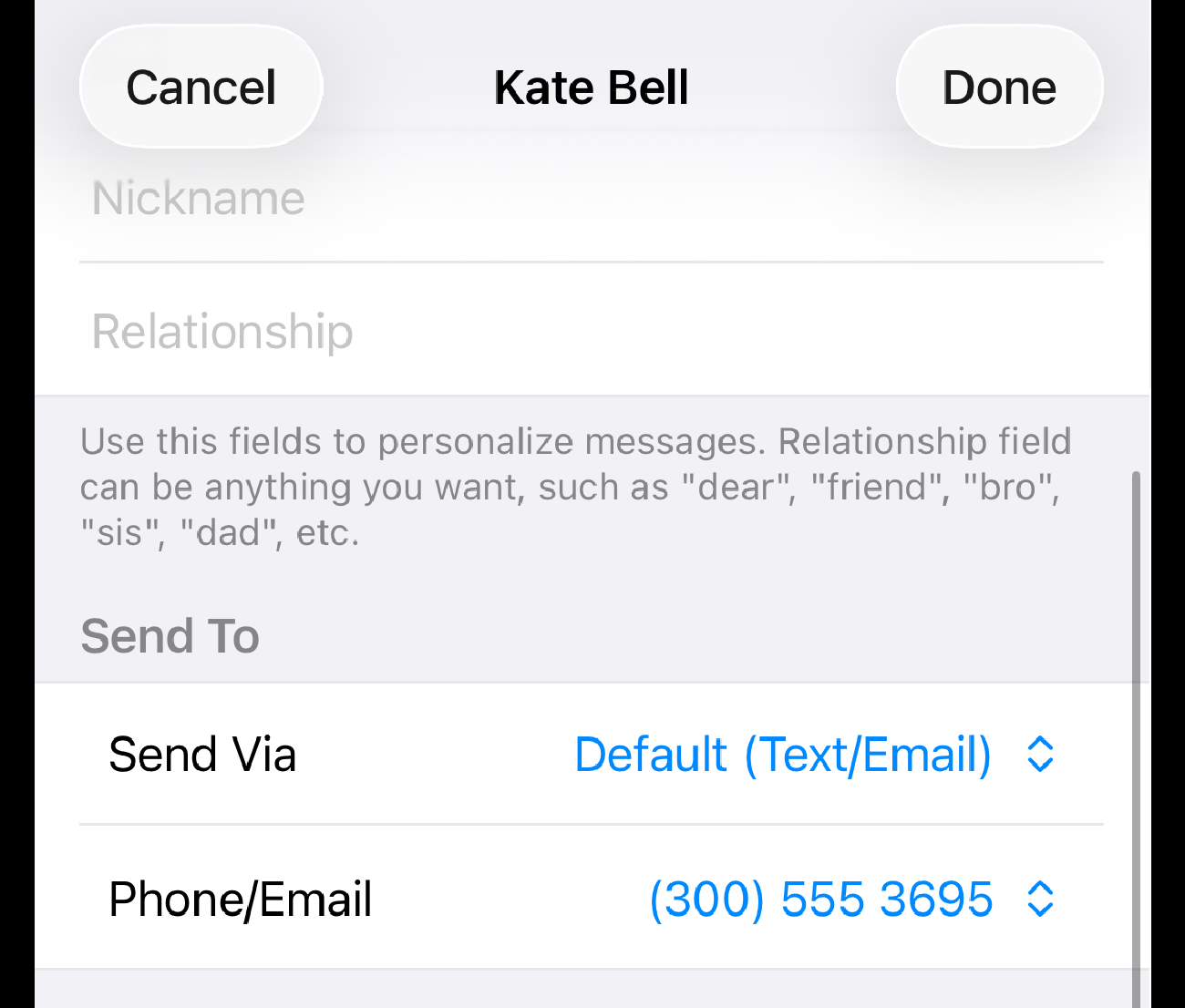
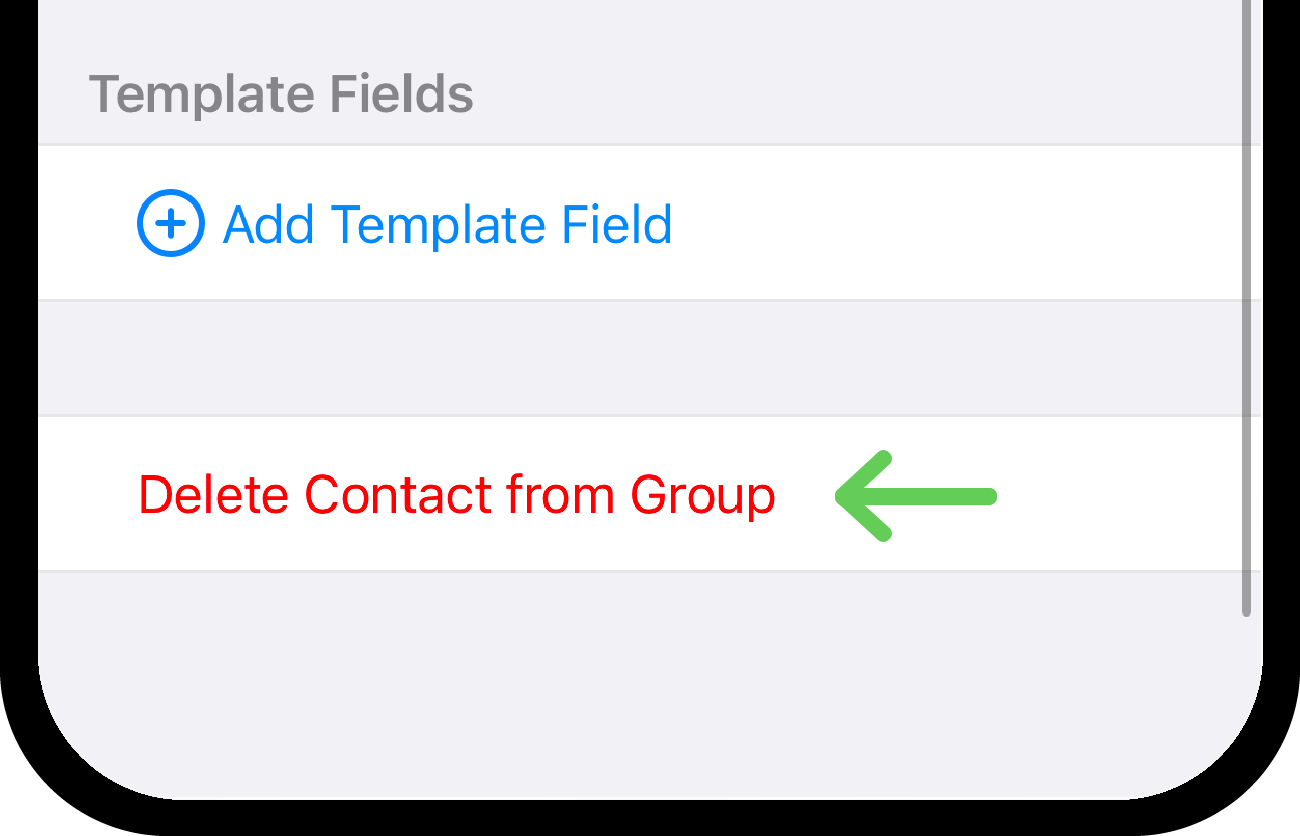
Scroll to the bottom of the page. Tap Delete Contact from Group.